Why Git Matters
Git is the foundation of modern software development. Whether you're working solo or with a team of hundreds, understanding Git is essential for tracking changes, collaborating effectively, and maintaining a clean codebase.
Did You Know?
Git is the most widely used version control system in professional software development. It's become the de facto standard in the industry.
Understanding Version Control
Version control systems track changes to files over time. Think of it as a time machine for your code—you can:
- See what changed, when, and by whom
- Revert to previous versions if something breaks
- Work on features independently without conflicts
- Collaborate with teammates seamlessly
Git excels at all of these tasks while being distributed, fast, and reliable.
Your First Repository
Let's start with the basics. Creating a Git repository is simple:
# Initialize a new repository
git init

# Check the status
git status
This creates a .git folder that tracks all changes. You'll use git status constantly—it shows what's changed, what's staged, and what's ready to commit.
Pro Tip
Run git status frequently. It's your best friend when learning Git and will help you understand exactly what's happening.
The Three Stages
Git has three main stages for your files:
- Working Directory - Where you edit files
- Staging Area - Where you prepare commits
- Repository - Where commits are stored
Here's the flow:
# Edit a file (working directory)
echo "Hello Git" > README.md

# Add to staging area
git add README.md

# Commit to repository
git commit -m "Add README with greeting"
Writing Great Commit Messages
Your commit messages matter. They tell a story of how your project evolved. Follow these guidelines:
- Use imperative mood: "Add feature" not "Added feature"
- Be specific: "Fix login validation bug" not "Fix bug"
- Keep first line under 50 characters
- Add details in body if needed
Example of a great commit:
git commit -m "Add email validation to signup form

- Validate format before submission
- Show inline error for invalid emails
- Add tests for validation logic"
Warning
Avoid vague messages like "update", "fix", or "changes". Future you (and your teammates) will appreciate clarity.
Branching Basics
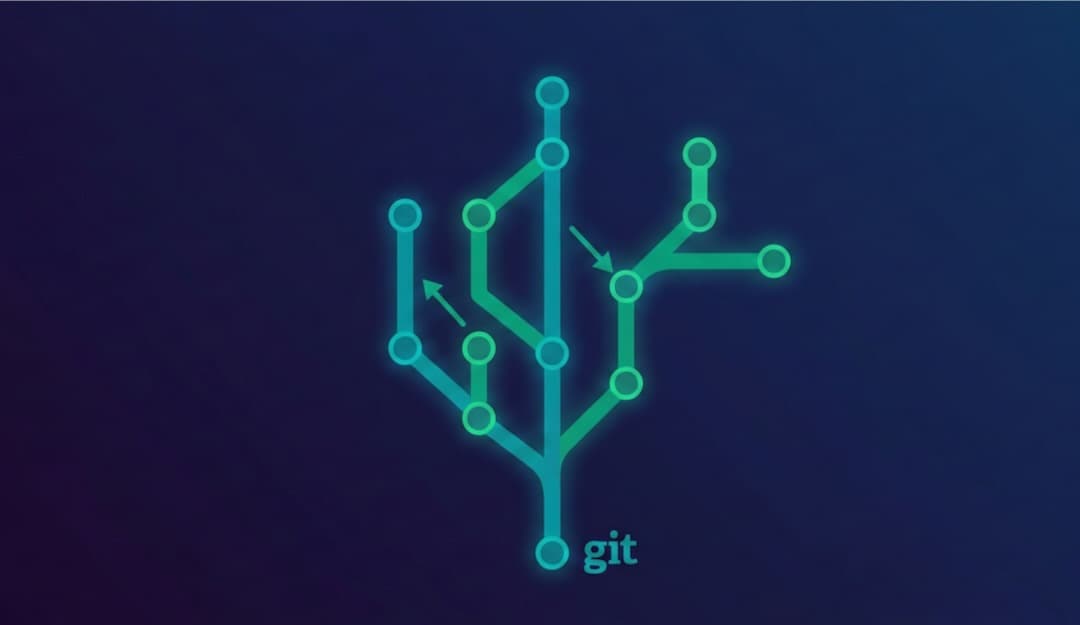
Branches let you work on features without affecting the main code:
# Create and switch to new branch
git checkout -b feature/user-auth

# Make changes, commit them
git add .
git commit -m "Implement user authentication"

# Switch back to main
git checkout main

# Merge your feature
git merge feature/user-auth
Note
The main branch is often called main or master. Modern repositories prefer main.
Common Commands Reference
Here are the commands you'll use daily:
# Check what changed
git status
git diff

# Stage and commit
git add <file>
git commit -m "message"

# View history
git log --oneline

# Branch operations
git branch              # list branches
git checkout <branch>   # switch branch
git merge <branch>      # merge branch

# Undo changes
git restore <file>      # discard working changes
git reset HEAD~1        # undo last commit (keeps changes unstaged)
Important
git reset rewrites history. Only use it on commits you haven't pushed yet. For pushed commits, use git revert instead—it creates a new commit that undoes changes without rewriting history.
Best Practices
Follow these guidelines as you learn:
- Commit often - Small, focused commits are easier to understand
- Pull before push - Stay synced with your team (use
git pull --rebasefor cleaner history) - Write clear messages - Explain the "why", not just the "what"
- Use branches - Keep main stable, experiment in branches
- Review before commit - Use
git diffto check your changes
Next Steps
Now that you understand the basics:
- Practice with our lessons - Try our Git track for hands-on exercises
- Learn about remotes - Understand GitHub, GitLab, and collaboration
- Master advanced features - Rebasing, cherry-picking, and more
- Build good habits - Consistent commits and clear messages
Ready to Practice?
Head to our Git lessons for step-by-step tutorials where you'll run real Git commands and build muscle memory.
Troubleshooting Common Issues
"I committed to the wrong branch!"
# Move the commit to a new branch (only if NOT pushed yet)
git branch feature/new-work
git reset HEAD~1 --hard
git checkout feature/new-work
Warning
The --hard flag discards all uncommitted changes permanently. Only use this if you haven't pushed the commit and don't have unsaved work. If already pushed, use git revert and git cherry-pick instead.
"I want to undo my last commit"
# Keep changes, undo commit (only if NOT pushed)
git reset HEAD~1

# Discard everything (only if NOT pushed)
git reset HEAD~1 --hard
Pro Tip
If you've already pushed the commit, use git revert HEAD instead. This creates a new commit that undoes your changes without rewriting shared history.
"I accidentally deleted a file"
# Restore from last commit
git restore <file>
Conclusion
Git might seem complex at first, but these fundamentals will serve you throughout your career. Start with the basics—init, add, commit, branch—and build from there.
The best way to learn is by doing. Practice these commands, make mistakes, and learn from them. That's exactly how every Git expert started.
Ready to dive deeper? Check out our complete Git learning track for comprehensive lessons and real-world projects.